RedactionCheck
Check a PDF

Does redacting in Word and saving as PDF actually work?

Black highlighter and black boxes in Word look like redactions, but when you save as PDF the words usually come along underneath. Check your file below.

Private by design — your PDF is checked on your computer and never uploaded

Check a redacted PDF

Works with your Wi-Fi off. Proof your file never leaves this computer.

Free: 0 of 2 files · 0 of 25 pages used this session. The sample is always free.

Free session limit reached

Pro Unlimited — $29/mo

The free tier covers 2 files and 25 pages per browser session.

  • Unlimited files and pages per session
  • Bulk productions — flatten hundreds of PDFs into one ZIP
  • Audit certificates with SHA-256 chain of custody
  • Still 100% local. Pro never uploads your files either.
Upgrade to Pro Unlimited

Why Word redactions leak — and how to fix them

Microsoft Word has no built-in redaction command. People usually improvise: they set the text highlight to black, change the font color to black on a black highlight, or draw a black rectangle over the words. All three look redacted on screen and in print.

When you choose “Save as PDF” or “Export to PDF,” Word converts the document faithfully — including the text under the highlight or shape. The PDF shows a black bar, but the words are still stored in the file and can be selected, copied, or found with search. The same is true for tracked changes and comments if they were not removed first.

A safer approach in Word is to delete the sensitive words and replace them with something like “[REDACTED]” before converting. That removes them from the file entirely. But mistakes are easy across a long document, and file details like the author’s name still carry over.

Whichever method you used, check the final PDF — not the Word file. RedactionCheck shows every word still hiding under a black bar, plus leftover comments and file details. If anything is found, flatten the PDF so it contains only page images.
Private & secure

Your document never leaves your computer. Not to us. Not to anyone.

Most “free PDF tools” quietly upload your file to their own servers to do the work. For a sealed filing, medical record, or confidential settlement, that upload is itself a leak. RedactionCheck works like a calculator on your desk: everything happens on your machine. Your files never leave your browser.

We use Google Analytics in cookieless mode to count anonymous page views. No cookies are set and no document content is ever sent.

  • Never uploaded
  • No account or email
  • We never see your files
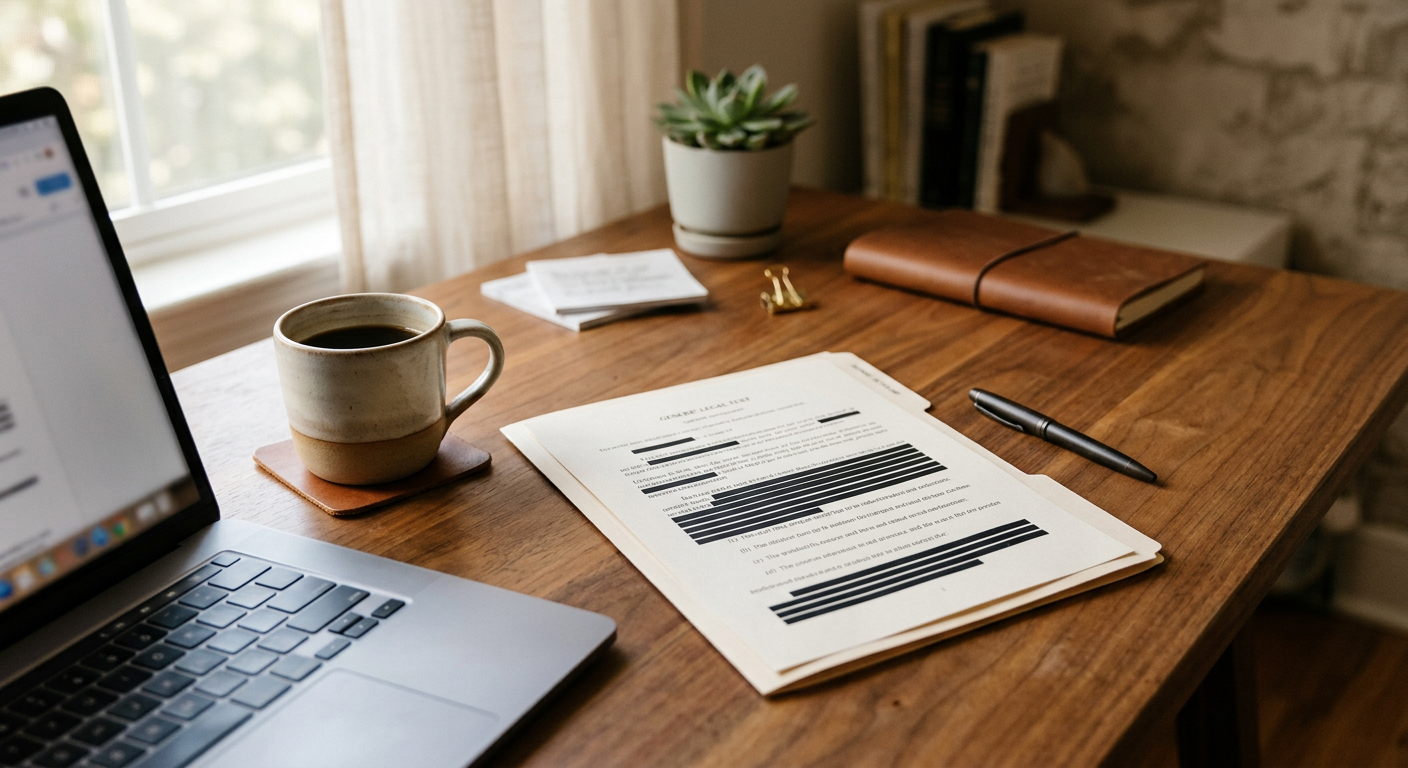
A printed legal document with black redaction bars on a desk beside a laptop

Most online PDF tools

  • Your file travels across the internet
  • It lands on a company’s computer you’ve never seen
  • You have to trust they delete it

RedactionCheck

  • Your file stays on your computer
  • It’s checked right here in this browser tab
  • Close the tab and it’s gone — nothing to delete

Don’t take our word for it. Test it in 30 seconds.

“Offline” simply means it works without the internet. If it works with your Wi-Fi off, your file can’t possibly be going anywhere.

  1. 1Keep this page open.
  2. 2Turn off your Wi-Fi, or unplug your internet cable.
  3. 3Drop in a PDF. It still works — because nothing is being sent.

Questions, answered

Does black highlighting in Word redact text?

No. The text is still there underneath the highlight, and it remains in the PDF you save from Word.

Does Microsoft Word have a redaction tool?

Word has no built-in redaction feature. Deleting the text before converting, then checking and flattening the PDF, is the reliable route.

Do tracked changes show up in the PDF?

They can, depending on your markup view when you export. Accept or reject all changes and delete comments first, then check the PDF.